How to Set Up Google Analytics for Websites and Apps – Step-by-Step Guide
Technology › How to Set Up Google Analytics for Websites and Apps – Step-by-Step Guide
04 Aug 2024 21:00
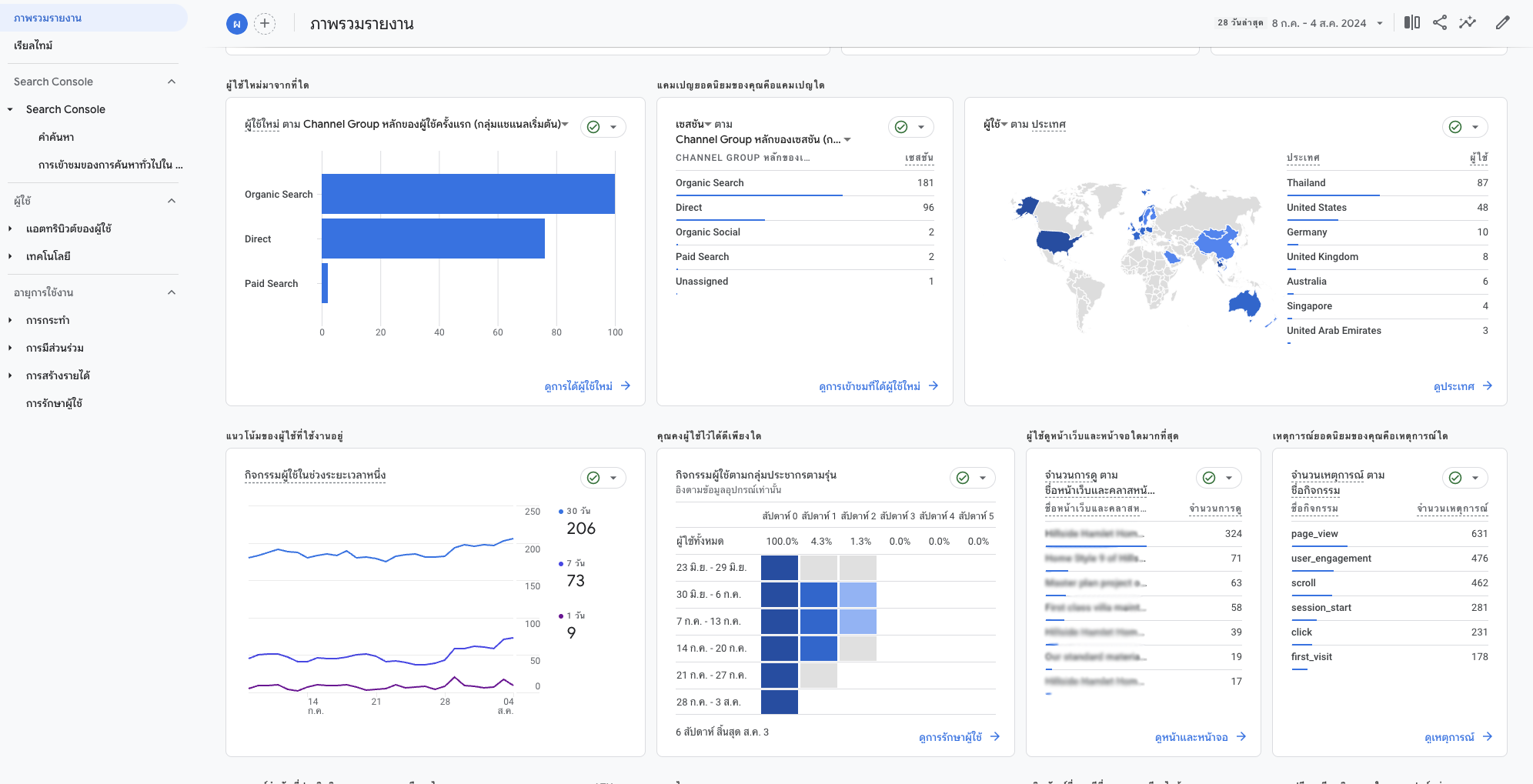
Google Analytics เป็นเครื่องมือที่มีประสิทธิภาพสำหรับการติดตามและวิเคราะห์พฤติกรรมผู้ใช้บนเว็บไซต์และแอปพลิเคชัน เพื่อดูข้อมูลเช่น จำนวนผู้เข้าชม, เวลาที่ใช้บนหน้าเว็บ, หน้าเพจที่ผู้ใช้เข้าชมมากที่สุด, แหล่งที่มาของการเข้าชม, และอื่นๆ
ขั้นตอนการตั้งค่า Google Analytics
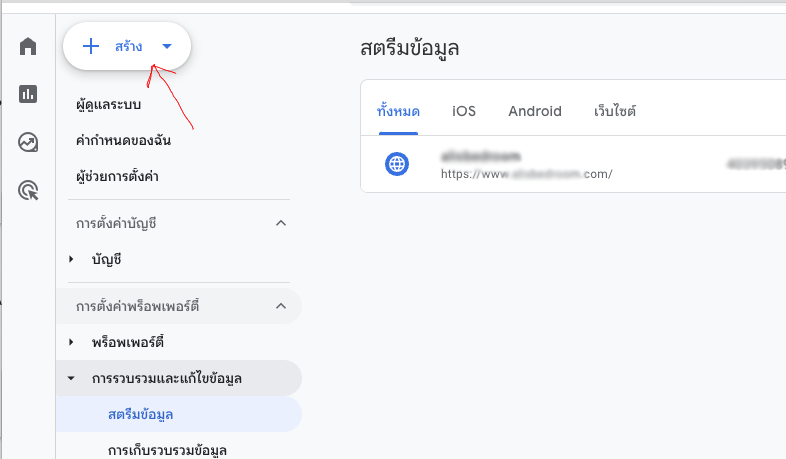
1. สร้างบัญชี Google Analytics
- ไปที่ Google Analytics และลงชื่อเข้าใช้ด้วยบัญชี Google ของคุณ
- หรือหากมีข้อมูลอยู่แล้ว สามารถสร้างใหม่ได้ที่ Google Analytics และลงชื่อเข้าใช้ด้วยบัญชี Google ของคุณ
- คลิกที่ "เริ่มต้นใช้งานการวิเคราะห์ฟรี"
- กรอกข้อมูลที่จำเป็น เช่น ชื่อบัญชี, ชื่อเว็บไซต์ หรือแอปพลิเคชัน, ที่อยู่ URL, หมวดหมู่ของอุตสาหกรรม, และเขตเวลา
- คลิก "ถัดไป" และทำตามขั้นตอนที่ระบบแนะนำ
2. เพิ่ม Google Analytics Tracking Code ไปที่เว็บไซต์
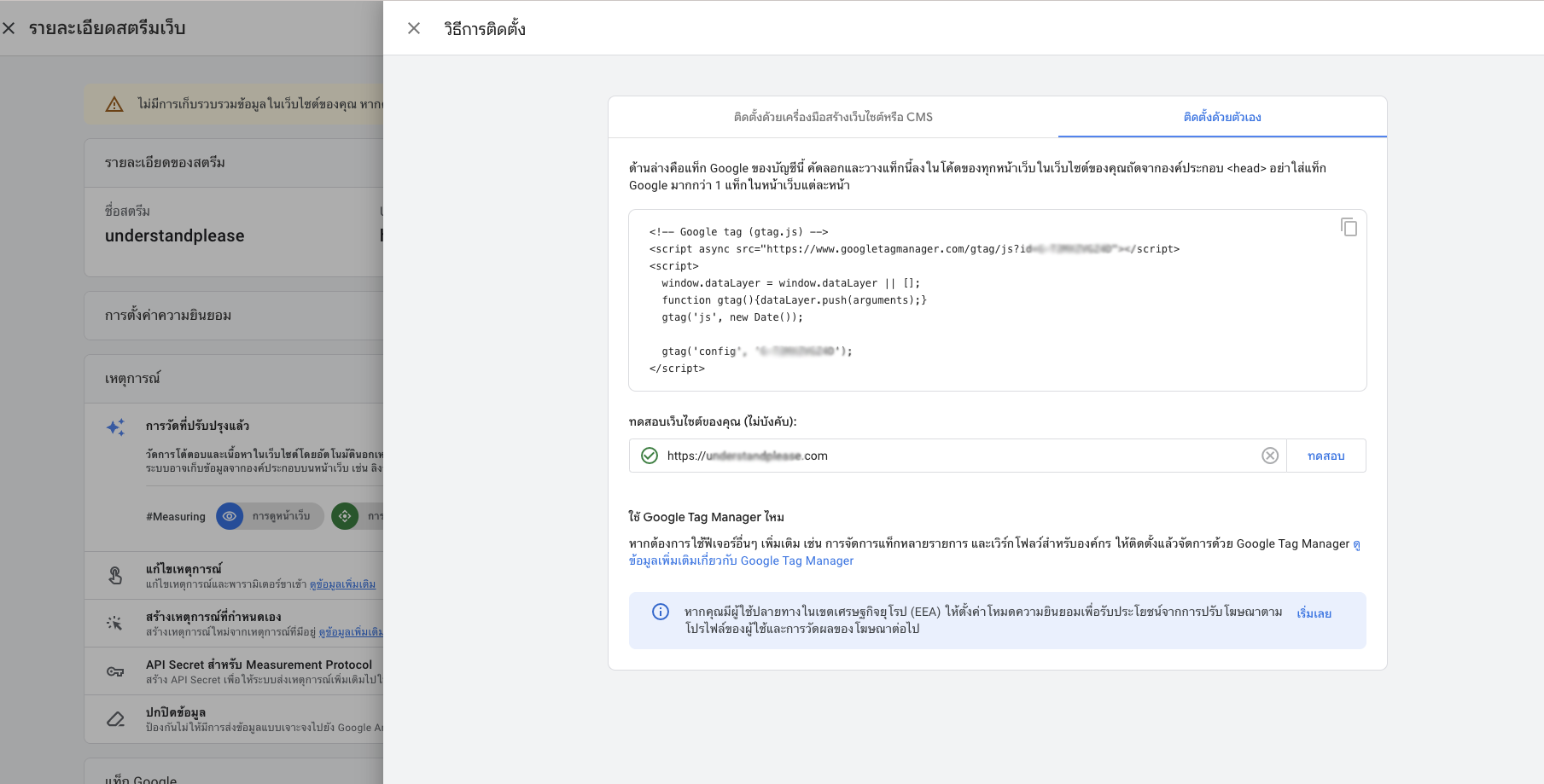
- หลังจากสร้างบัญชีแล้ว คุณจะได้รับ Tracking ID และ Global Site Tag (gtag.js) ซึ่งเป็นโค้ดที่ใช้ในการติดตาม
- คัดลอกโค้ดที่ได้มา
- กรอกข้อมูลที่จำเป็น เช่น ชื่อบัญชี, ชื่อเว็บไซต์ หรือแอปพลิเคชัน, ที่อยู่ URL, หมวดหมู่ของอุตสาหกรรม, และเขตเวลา
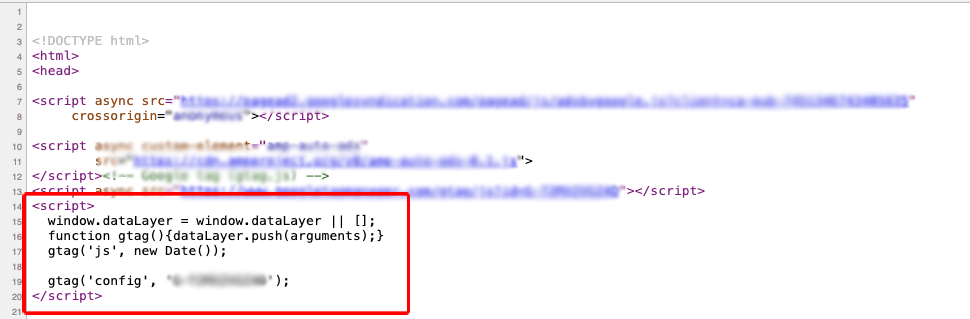
- วางโค้ดนี้ในทุกหน้าของเว็บไซต์ของคุณ โดยวางใน
<head>ของ HTML
<!DOCTYPE html>
<html lang="en">
<head>
    <script> async src='[URL_GOOGLE]?id=YOUR_TRACKING_ID'> </script>
    <script>w
      window.dataLayer = window.dataLayer || [];
      function gtag(){dataLayer.push(arguments);}
      gtag('js', new Date());

      gtag('config', 'YOUR_TRACKING_ID');
    </script>
</head>
<body>
</body>
</html>
หมายเหตุ: เปลี่ยน YOUR_TRACKING_ID ด้วย Tracking ID ของคุณ
เปลี่ยน [URL_GOOGLE] เป็น https://www.googletagmanager.com/gtag/js
3.การติดตั้งในแอปพลิเคชัน (สำหรับ iOS และ Android)
- สำหรับการติดตามแอปพลิเคชัน คุณต้องใช้ Firebase Analytics ซึ่งเป็นเครื่องมือที่รวมเข้ากับ Google Analytics ได้อย่างลงตัว
- ไปที่ Firebase และทำตามขั้นตอนการตั้งค่าที่แนะนำสำหรับการติดตั้ง SDK ในแอปของคุณ
- ใน Firebase Console คุณสามารถเชื่อมต่อโครงการ Firebase ของคุณกับ Google Analytics เพื่อดูข้อมูลการวิเคราะห์แบบรวม
4. ตรวจสอบและวิเคราะห์ข้อมูล
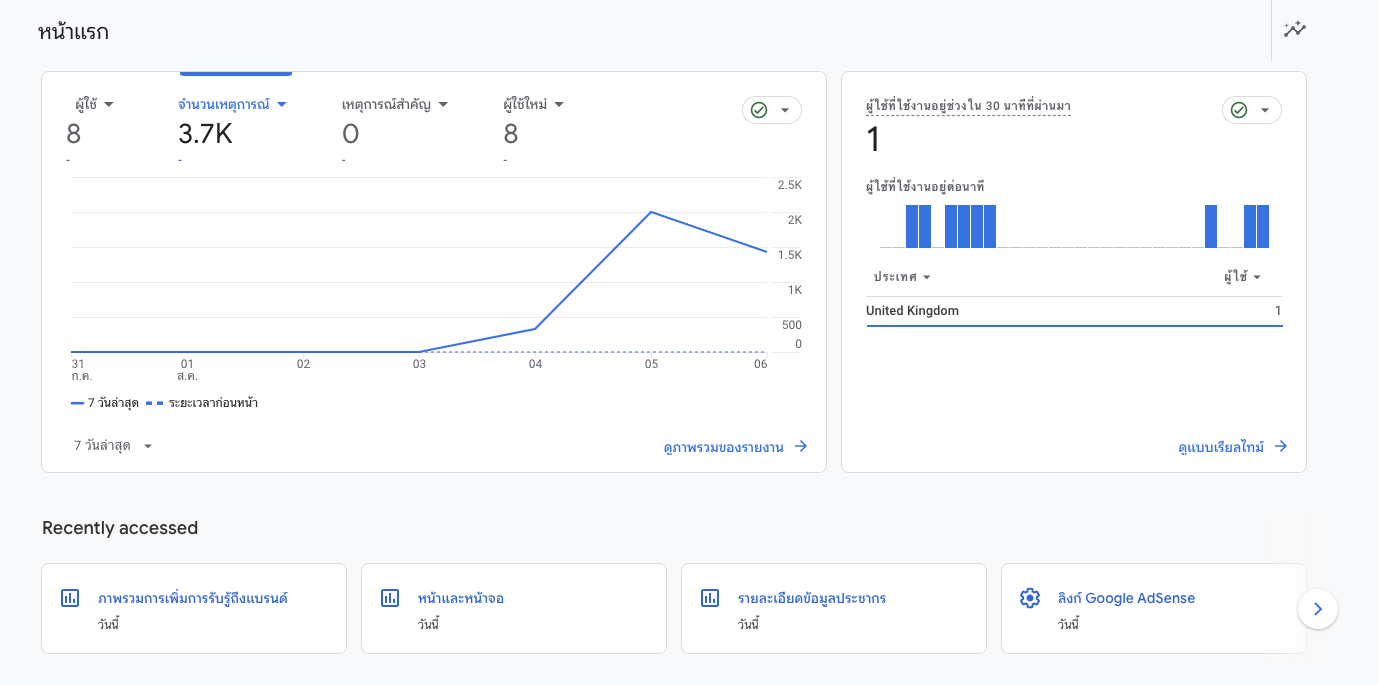
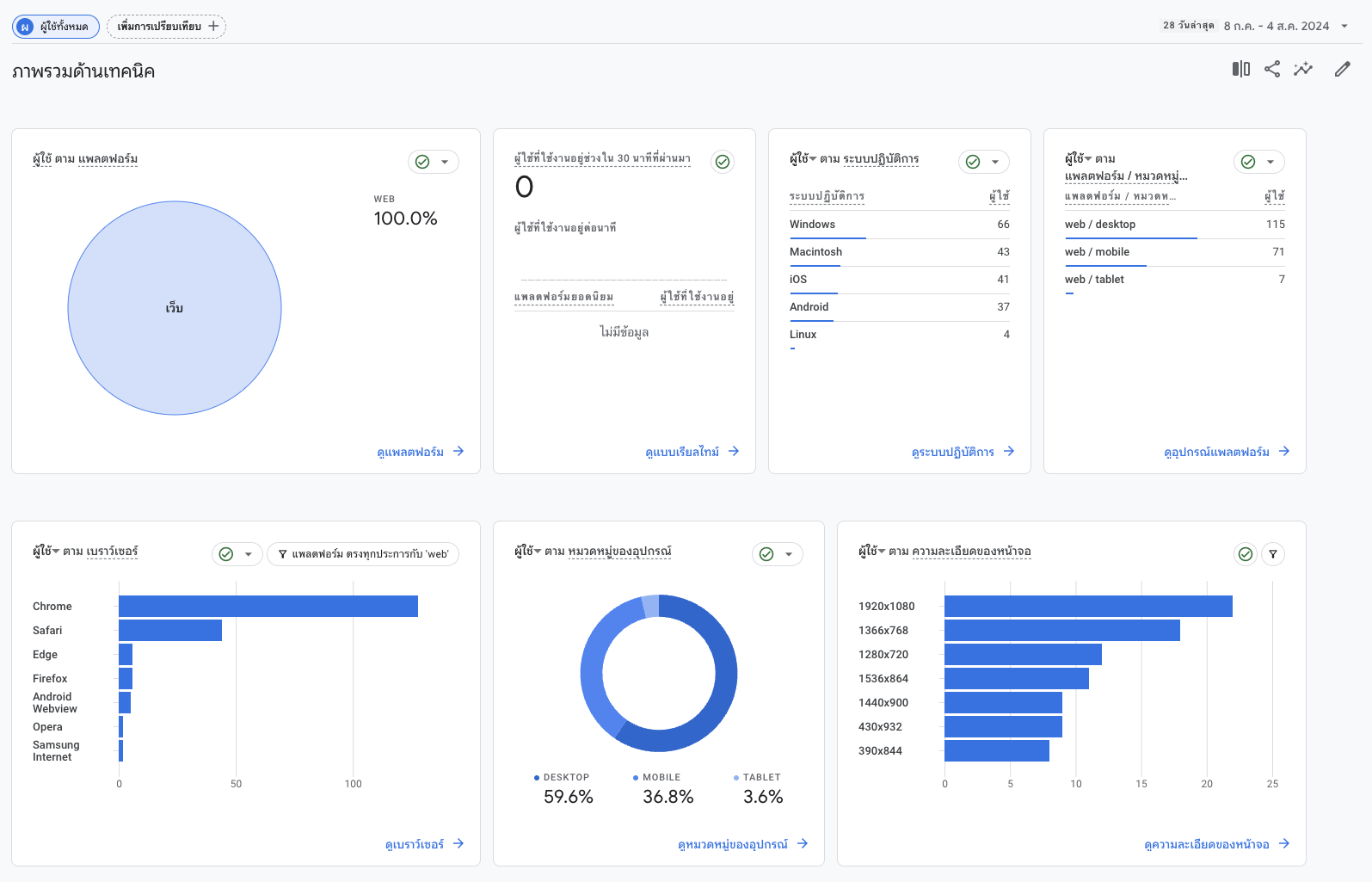
- หลังจากที่คุณติดตั้งโค้ดติดตามเรียบร้อยแล้ว ข้อมูลการเข้าชมจะเริ่มถูกบันทึกในบัญชี Google Analytics ของคุณ
- ไปที่ Google Analytics เพื่อดูแดชบอร์ดและรายงานที่พร้อมใช้งาน
- คุณสามารถใช้เมนูต่าง ๆ เพื่อดูข้อมูลผู้ใช้ เช่น จำนวนผู้เข้าชม, ผู้ใช้งานใหม่, การเข้าชมแบบเรียลไทม์, การได้มา (Acquisition), พฤติกรรม (Behavior), และการเปลี่ยนแปลง (Conversions)
- การตั้งค่าเป้าหมาย (Goals): คุณสามารถกำหนดเป้าหมายเพื่อวัดผลการดำเนินงาน เช่น จำนวนการซื้อขาย, การกรอกแบบฟอร์ม, หรือการสมัครสมาชิก
- การตั้งค่าการวัดผลอีคอมเมิร์ซ: หากคุณมีเว็บไซต์อีคอมเมิร์ซ คุณสามารถตั้งค่าการวัดผลอีคอมเมิร์ซเพื่อวิเคราะห์ยอดขายและการดำเนินการของลูกค้า
Google Analytics เป็นเครื่องมือที่มีความยืดหยุ่นและมีคุณสมบัติหลากหลาย คุณสามารถปรับแต่งการติดตามและการรายงานตามความต้องการ ทางเครื่องมือการใช้งานด้านซ้ายมีรายงานให้ดูหลากหลายรูปแบบ
Please rate your satisfaction with this article

Post a Comment
Your email address will not be displayed to others. Required fields are marked *
Recommended Content

In an era where “wireless earbuds” have become an essential accessory for smartphone users — for watching movies, liste…
Read more

In an era where everything is connected to the internet, having fast and stable home Wi-Fi is essential. Slow connectio…
Read more

Therefore, when choosing the best VPN for 2026, consider your own needs first: If you want the most all-round VPN (spee…
Read more

The year 2026 marks a major turning point for work laptops with the arrival of high-performance processors designed spe…
Read more

Logitech has returned once again with a major upgrade to its beloved MX Master series, a favorite among professionals a…
Read more

วันนี้เราจะมาดูวิธีการตั้งอีเมล์ officail กันครับ ว่าจะมีขั้นตอนการอย่าไรบ้าง เบื้องต้นเรามารู้จัก google workspace กัน…
Read more

Onsen Mon Jam is located in Mae Rim District, Chiang Mai Province. Inspired by Japanese onsen, it is nestled in nature …
Read more

Onsen Mon Jam is located in Mae Rim District, Chiang Mai Province. Inspired by Japanese onsen, it is nestled in nature …
Read more
Google Search Console is a free tool provided by Google designed to help website owners and SEO specialists monitor and…
Read more

A robots.txt file is like a signpost for search engine bots like Google, telling them which parts of your website they …
Read more
If your Google Business Mail or Google Workspace (formerly G Suite) is not receiving messages or emails, it could be du…
Read more

HTML (HyperText Markup Language) is a markup language used to create and format documents on the web. It forms the fund…
Read more